
How to Post and Manage P2P Merchant Ads
How to Post a P2P Merchant Ad
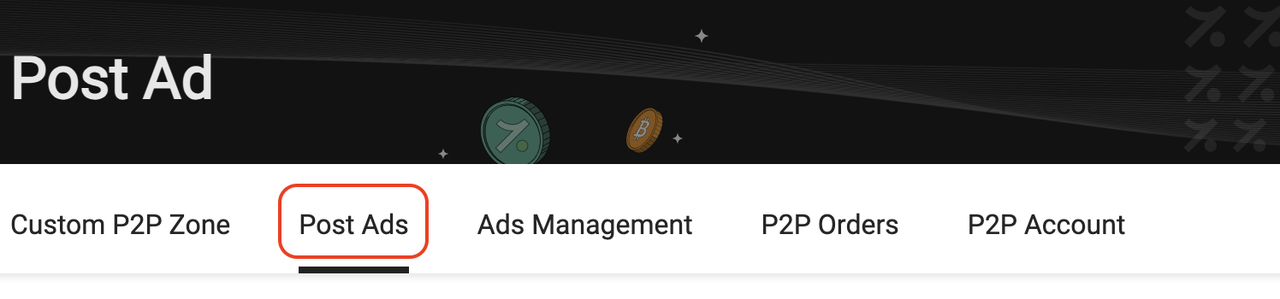
1. Go to the P2P Merchant section then click the 「Post Ads」 button
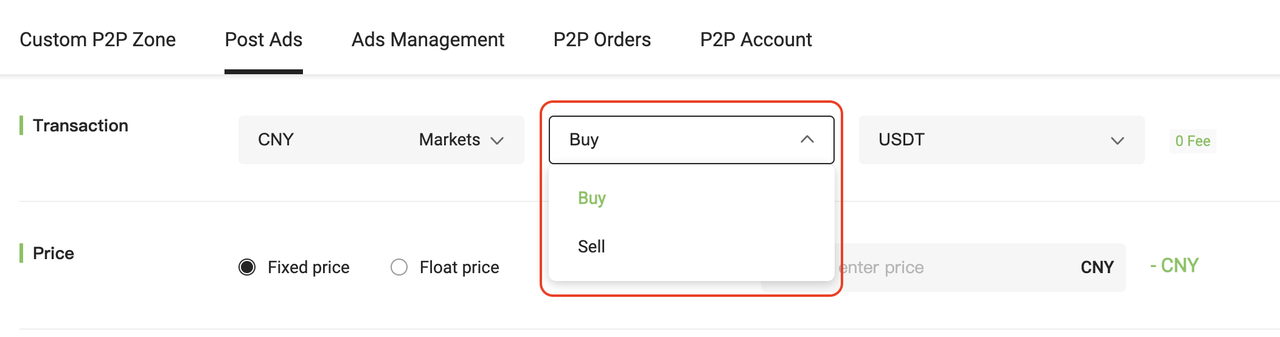
2. Choose Buy or Sell
Select whether you want to post a Buy or Sell ad. (P2P trading defaults to CNY.)
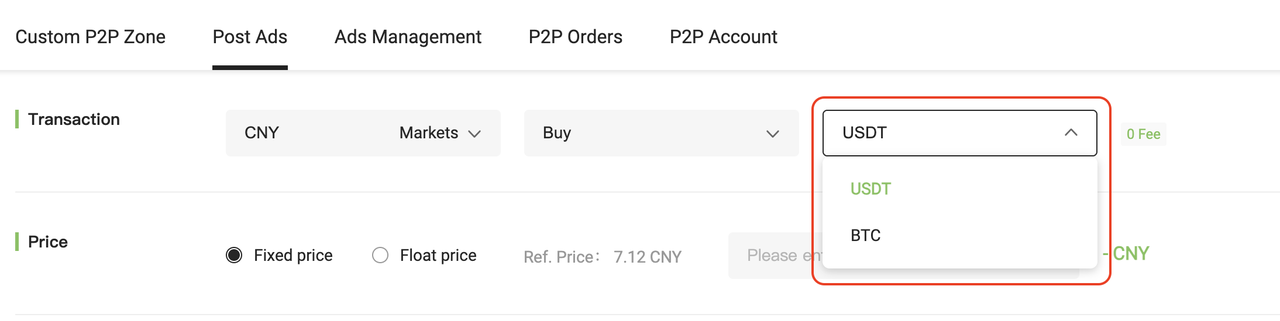
3. Choose the currency pair you want to trade
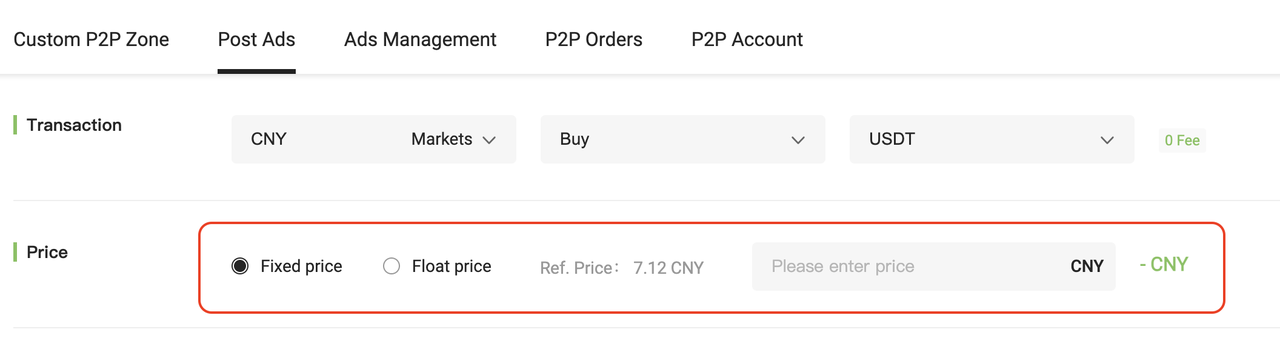
4. Set the Pricing Type
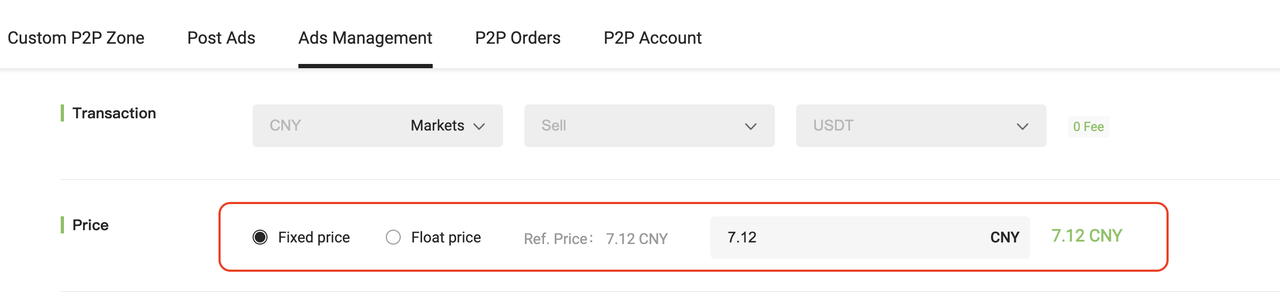
Choose between Fixed Price and Floating Price. (Fixed Price is set as the default.)
- Fixed Price: Enter the exact price you wish to trade at.
- Floating Price: Based on the real-time market price. You’ll need to enter a floating ratio. Negative ratios are allowed.
👉 Learn more: What is the Floating Price Mechanism?
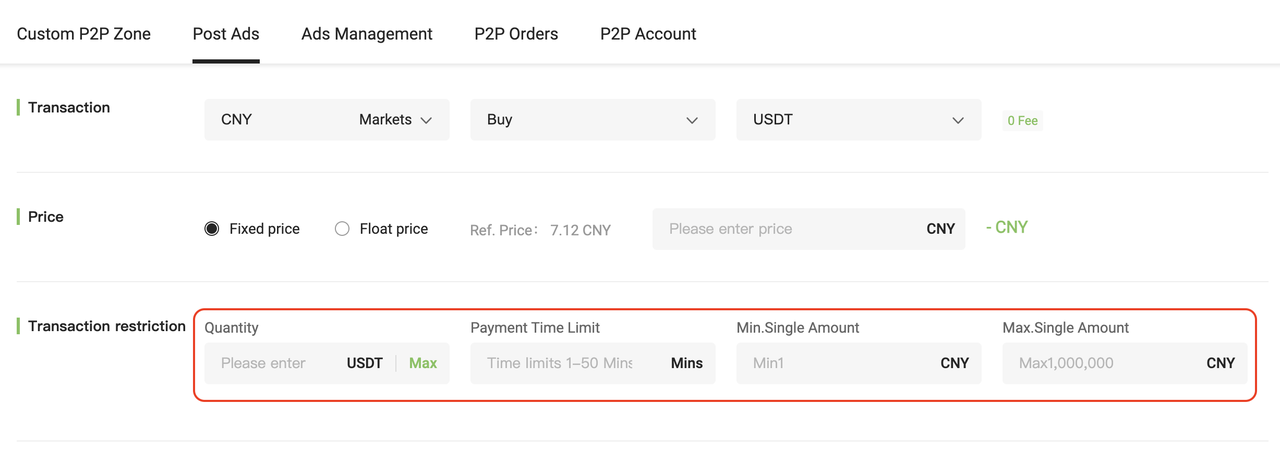
5. Set Trade Limits and Time Windows
Configure the total quantity, minimum single order limit (≥ 1 CNY), and maximum single order amount.
- Set payment time limit for the counterparty (15–30 minutes)
- Set payment time limit for yourself (10–20 minutes for buy-ins)
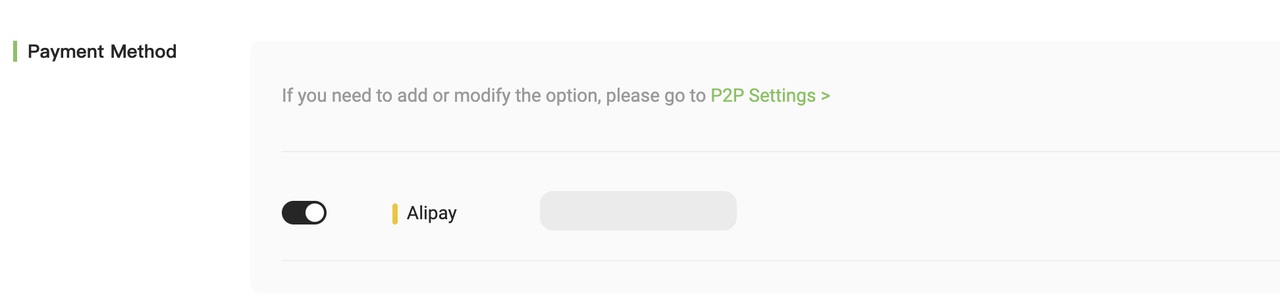
6. Select Payment Methods
Choose one or more supported payment methods (up to 3). At least one must be enabled.
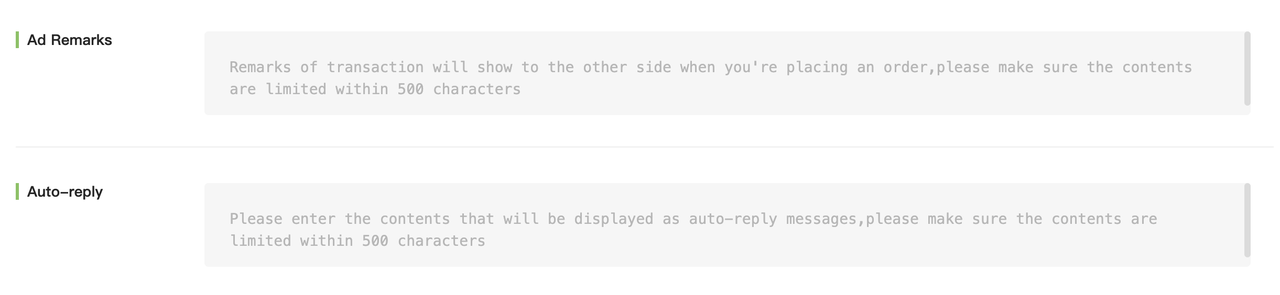
7. Add Auto-Reply and Ad Remarks (Optional)
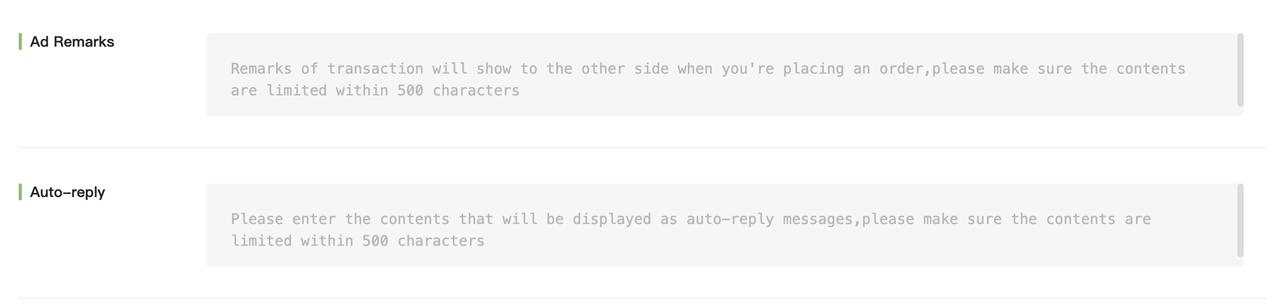
- Auto-Reply: Automated message sent to the counterparty after an order is placed (max 500 words).
- Ad Remarks: A short message displayed when someone clicks your ad (max 500 words).
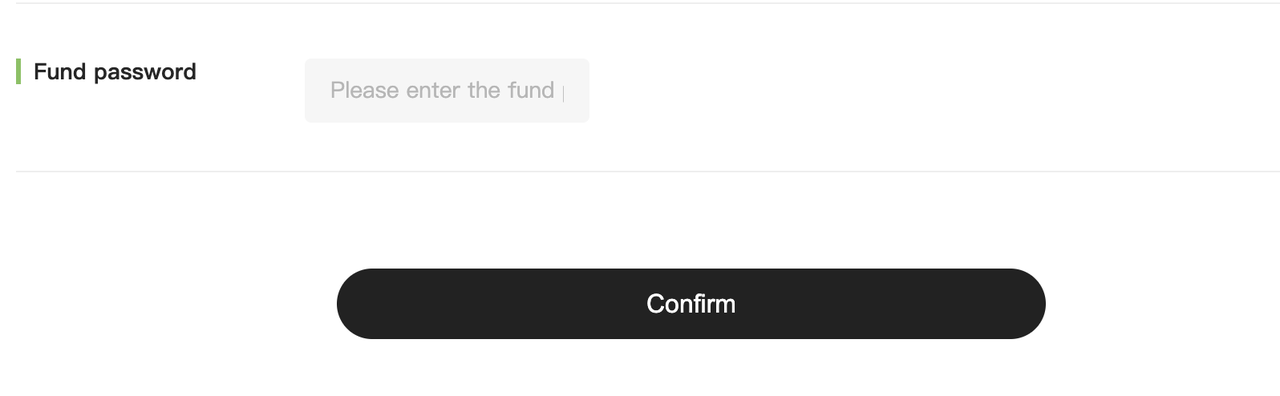
8. Publish the Ad
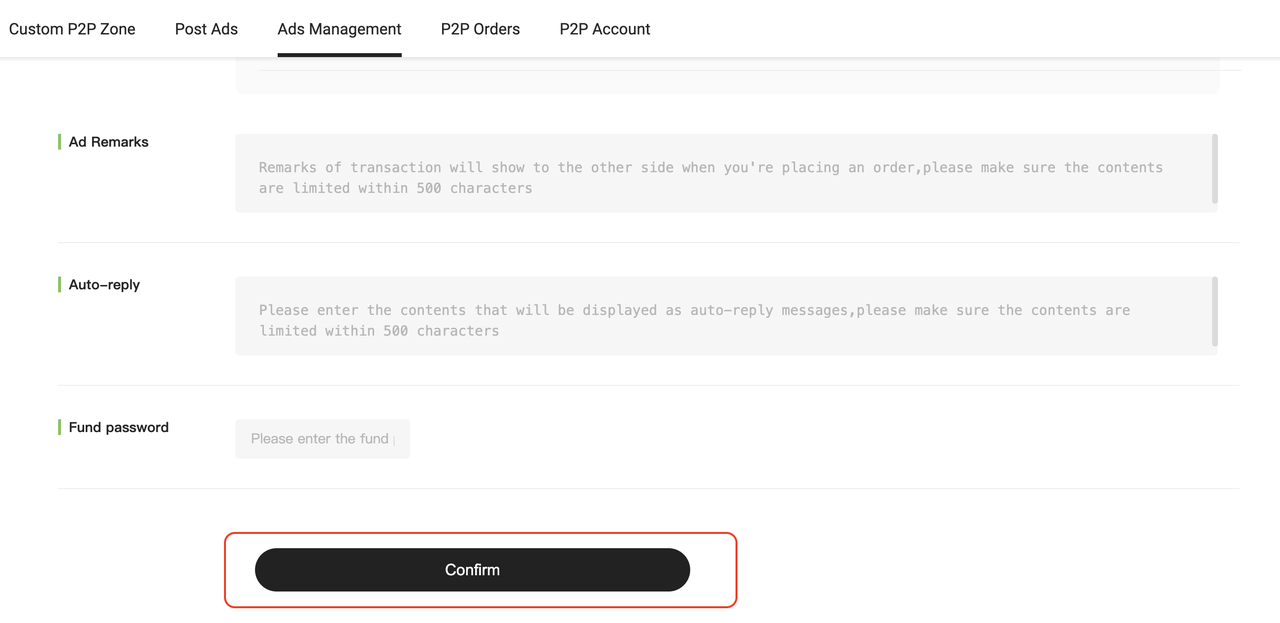
After setting all parameters, enter your fund password and click 「Confirm」 to post your ad.
How to Manage Your P2P Merchant Ads
1. Access Ads Management
After posting your advertisement, go to the「Ads Management」 section to manage your listings.
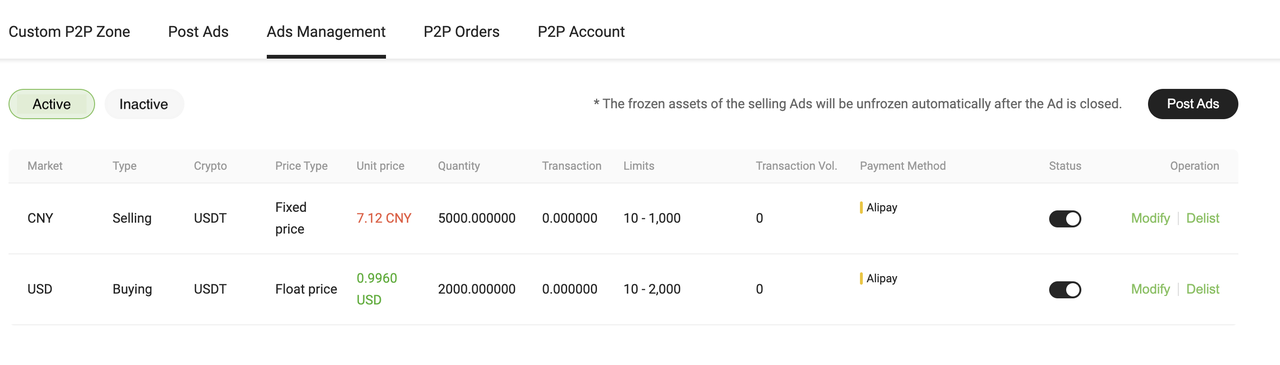
2. Modify Ad Details
For active ads, disable the「Status」 toggle and click the「Modify」 button to edit the ad. You will be redirected to the ad editing page.
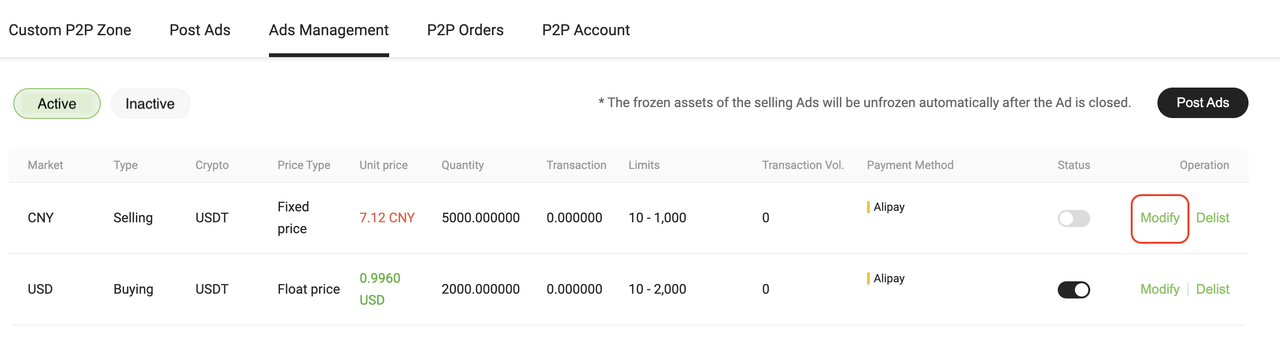
3. Adjust Price Type
You can update the Floating Price or Fixed Price settings here.
4. Set Auto-Reply and Remarks
Scroll down to configure the Auto-Reply Message (sent automatically after an order is placed) and Ad Remarks (displayed when users view your ad).
5. Save Changes
Click the「Confirm」 button to update your advertisement status.
6. Take Ads Offline When Unavailable
Please take your ads offline if you’re temporarily unavailable or unable to process orders, to avoid incomplete transactions.
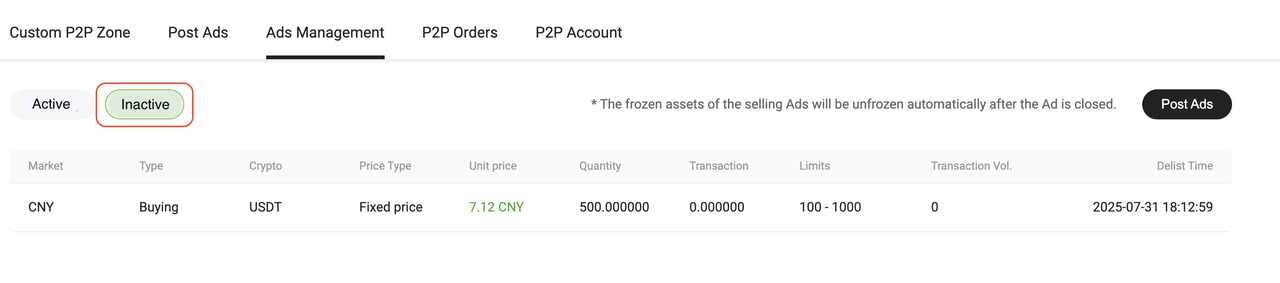
7. View Off-Shelf Ads
If an ad is offline (inactive), click the「Inactive」 button to view its details.
- If a complaint is accepted, the system will automatically take your ads offline
- If multiple failed trades occur, the system may freeze your ad, preventing it from being relisted